









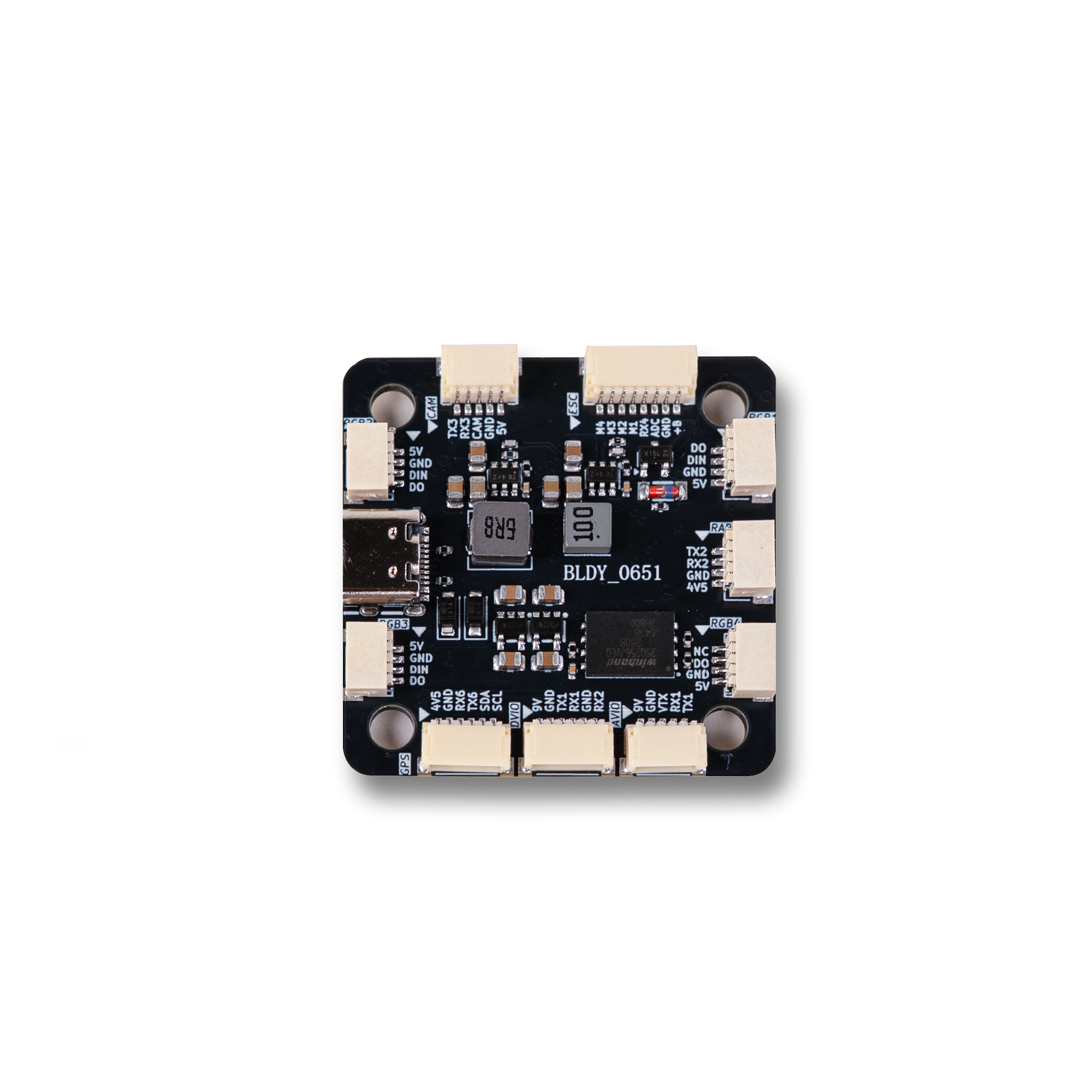
About Botwing F405
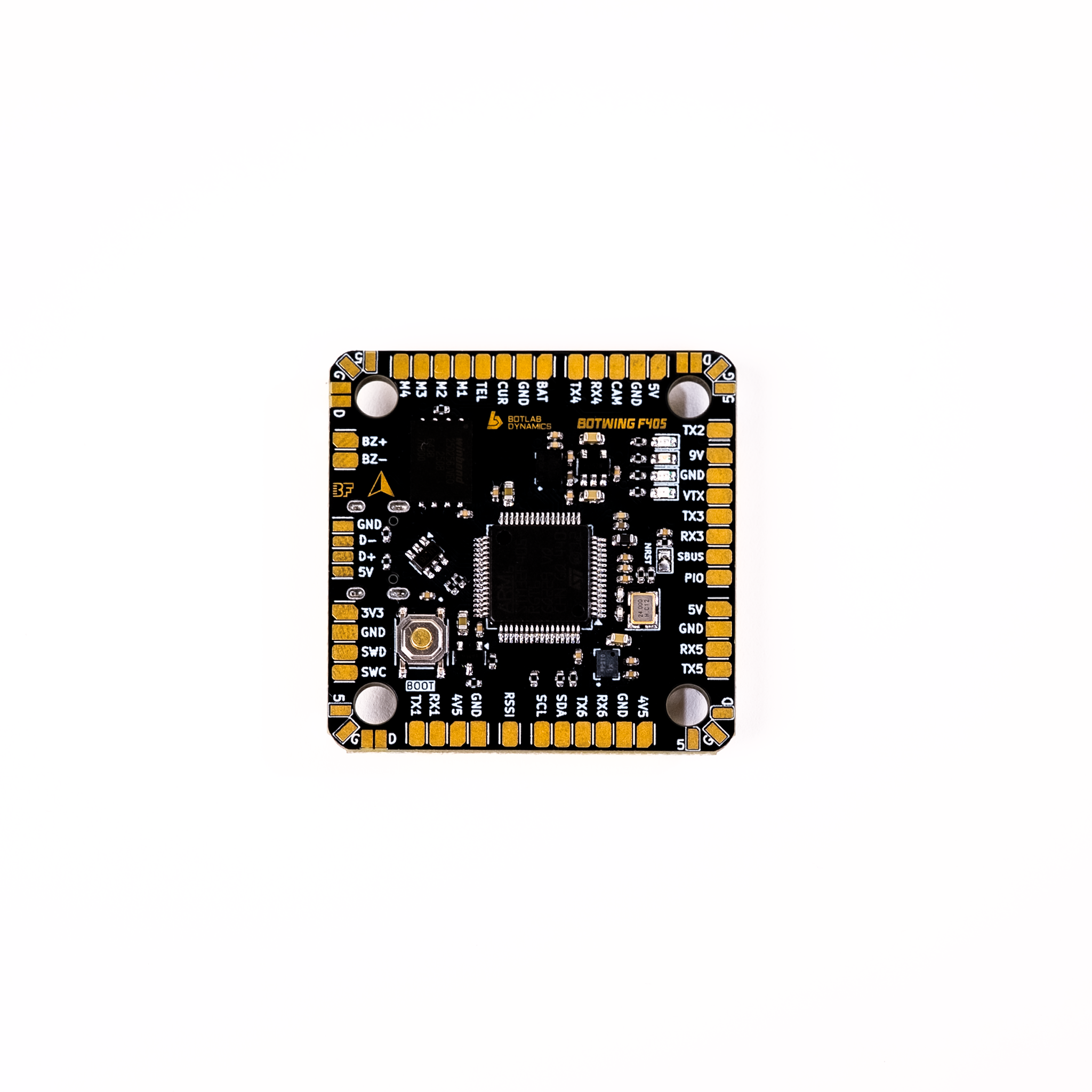
Meet BotWing F405, the versatile flight controller that powers everything – from FPV racing and cinematic drone shoots to DIY learning projects. Built around the reliable STM32F405 MCU and the precision ICM42688P gyro, BotWing F405 offers smooth, stable flight performance across a wide range of setups. With support for Mission Planner, iNav, and BetaFlight, and a wide power input range (3–6S LiPo), it’s designed to adapt seamlessly to your needs – whether you’re chasing racing flags or cinematiclandscapes. The solderless design ensures clean, quick, and hasslefree assembly, making it ideal for builders at every experience level.mIt features 4 motor outputs, integrated 32MB Blackboxmlogging, crisp AT7456E OSD display, plug-and-play DJI Air Unit compatibility, and a full suite of UARTs and LED strip.
Specification
DimensionsWW: 40x40mm
Firmware: Mission Planner, iNav , BetaFlight
Firmware Target Name: BOTWINGF405
Mounting: 30.5mm x 30.5mm (4mm hole
size)
MicroController(MCU): STM32F405
Motors Outputs: 4 Motors
Gyro (IMU): ICM42688P
Power Input: 3-6S LiPO
On Screen Display (OSD): AT7456E
BlackBox: 32 MB Winbond Blackbox
Buzzer: BZ+ and BZ- pad used for 5V Buzzer
i2C: i2C Supported SDA & SCL pads on front side. Used for magnetometer , sonar etc.
ESC Telemetry UART: UART-2
RSSI: Named as RSSI on the front side.
Boot Button: Supported , Press and hold BOOT button and power the FC on at the same time , this will force the FC to enter into DFU Mode , This is used for Firmware Flashing.
Led Pads for LED STRIP: Led Pads for LED STRIP Supported , 5V,GND,DATA pads are present on the top side.
Firmware Target Name: AM32_AT32PB4_540_F421
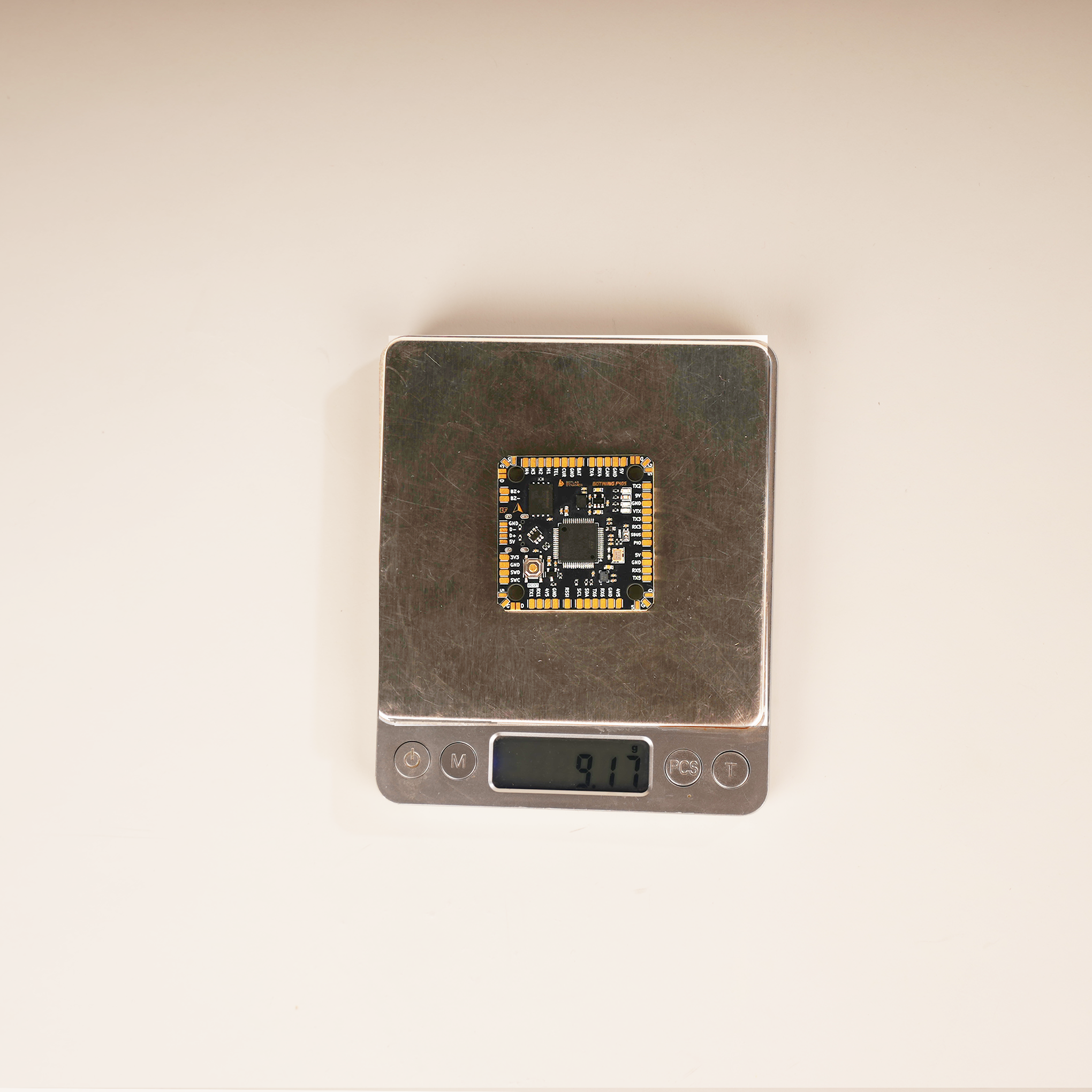
Weight: 9gm
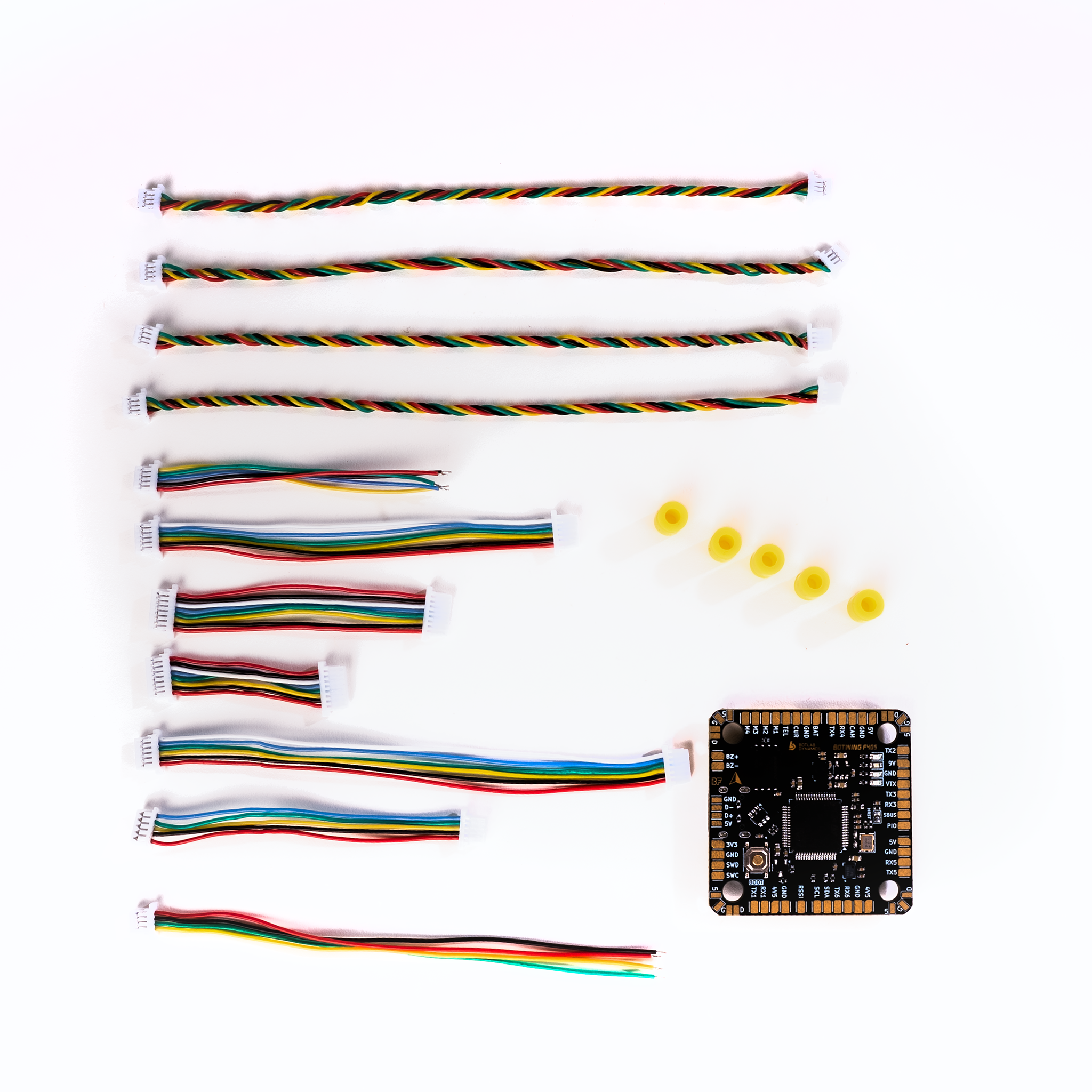
DJI AIR Unit-6-pin DJI Air Unit: Plug Plug and Play Port
UARTs: UART1(Radio) , UART2(ESC) ,UART3(VTX) , UART4(Camera) ,UART5 , UART6(GPS) (6 Sets)
USB Port Type: Type C
4.5V Pads: 4 group of 4.5Vpads is used
5V: 5V pad 4 group of 5V Pads used in LED Strip , Total 5V Pads =6
9V pad: 1 Pad is present
3.3V: Pads 1 Pad is present
Camera Control Pad: Not Present
LED Indication
RED LED 5V and 3.3V
Blue LED Status LED 1
Green LED Status LED 2
LED Connection Options:
You can connect LEDs to the F722 flight controller in two ways:
1. Solder Pads: Use the dedicated 5V, GND, and Signal pads on the board.
2. 4-Pin Connector: Use the 4-pin LED connector which includes: 5V, GND, Signal In, and Signal Out.
Daisy Chain Functionality
1. By default, the LED connectors are daisy-chained, allowing each connector to control a separate LED strip independently.
2. If you want all connectors to control standard LEDs in parallel (same signal to all strips), follow these steps:
Parallel LED Setup Instructions
1. Cut the Signal Out wire on all connectors except the first one.
2. Bridge the small pad next to the signal pad on the flight controller for each modified connector.
3. This reroutes all connectors to share the same signal line from the first connector, enabling synchronized LED behavior.
Avoid Sbus or RX use with DJI or Vice versa
When integrating an ExpressLRS (ELRS) receiver with a DJI Air Unit (such as the O3, Link, Vista, or Air Unit V1), it’s crucial to manage the SBUS connections to prevent UART conflicts that can disrupt receiver
functionality.
The DJI Air Unit’s 6-pin connector includes an SBUS (or DJI HDL) wire, typically yellow, intended for use with DJI’s own remote controllers. If you’re utilizing an ELRS receiver instead of a DJI remote, this SBUS wire becomes redundant and can interfere with the ELRS receiver’s operation by causing signal conflicts on the flight controller’s UART. (Oscar Liang)
To resolve this, carefully remove the SBUS wire from the DJI Air Unit’s connector. Use a fine tool, like a needle or tweezers, to gently lift the plastic tab securing the wire and slide it out of the connector. Once removed, insulate the exposed end with heat shrink tubing or electrical tape to prevent any potential short circuits. (Oscar Liang)
After disconnecting the SBUS wire, connect your ELRS receiver to an available UART on the flight controller, ensuring proper wiring of the TX and RX lines. In your flight controller’s configuration software (such
as Betaflight), enable the corresponding UART for serial RX and set the receiver protocol to CRSF, which is compatible with ELRS.
By removing the unnecessary SBUS connection from the DJI Air Unit, you eliminate potential signal conflicts, allowing your ELRS receiver to function correctly and ensuring reliable control of your drone.
Using USB Breakout Pads for Extended USB Connectivity
In scenarios where the onboard USB connector is damaged or inaccessible – such as in large drone builds – the Botwing F405 flight controller provides USB breakout pads as an alternative interface for
connecting to a computer.
How to use USB Breakout Pads:
1. Locate the USB Breakout Pads:
• The Botwing F405 includes clearly marked USB breakout pads on the board.
2. Connecting to USB Breakout Pads:
• Soldering: Carefully solder the USB cable wires to the corresponding pads:
• D+ and D- : USB data lines
• 5V: Power supply line.
• GND: Ground line.
3. Using the Extended USB connection:
• Once soldering is complete, you can use the extended USB connection to interface with your computer, functioning the same as the onboard USB port.
• This enables full access to the Betaflight Configurator for firmware flashing and configuration tasks.
Important Guidelines
• Ensure precise and secure soldering to prevent short circuits or connection issues.
• Double-check all wire connections to the breakout pads before powering the board, as incorrect wiring can damage the flight controller or connected devices.
Reviews
There are no reviews yet.